Auto-Compaction Is Costing You Sessions
The other night I was wrapping up a heavy session — six case studies written, architecture changes documented, a full weekend sprint planned. I’d been building up CLAUDE.md memory entries, recording gotchas, staging documentation updates for the changelog. Then auto-compaction fired.
The compaction summary captured the broad strokes. It did not capture the specific memory entries I wanted preserved. It did not capture the changelog updates I’d been staging. It did not capture the debugging context I’d accumulated across dozens of tool calls. The next session started with a reasonable summary of what happened and an incomplete picture of what I’d actually learned.
This keeps happening. And every time, the cost is the same: context I built up deliberately gets compressed into context the system chose for me.
What auto-compaction actually costs you
Claude Code’s context window is 200K tokens. When a session hits approximately 83% capacity — around 167K tokens — the system automatically compacts the conversation to free space. The session keeps running. But the compaction is uncontrolled, which means the system decides what to preserve and what to summarize.
If you’re doing routine work, this is fine. If you’re building up implementation context across a complex session — debugging a chain of issues, accumulating gotchas for memory, preparing documentation updates, working toward a specific stopping point — auto-compaction takes that control away.
The /compact command exists for exactly this reason. Running it manually lets you prepare: update your memory files, file your documentation, commit your work, and then compact on your terms with the important context already persisted. But you can only do that if you know compaction is coming.
I keep forgetting to check. So I built something that checks for me.
Claude Context Monitor
It’s a bash script. 178 lines. It scans your active Claude Code session files, calculates token usage from the API metadata embedded in each assistant response, and tells you which sessions need attention before auto-compaction takes over.
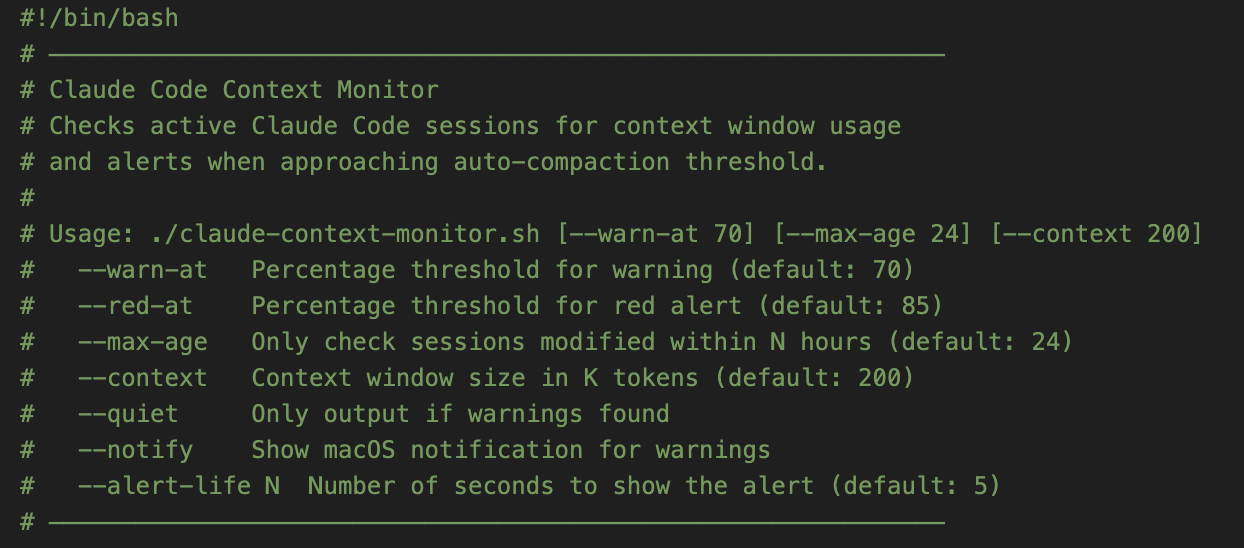
The output is straightforward — your active sessions, color-coded by risk level:
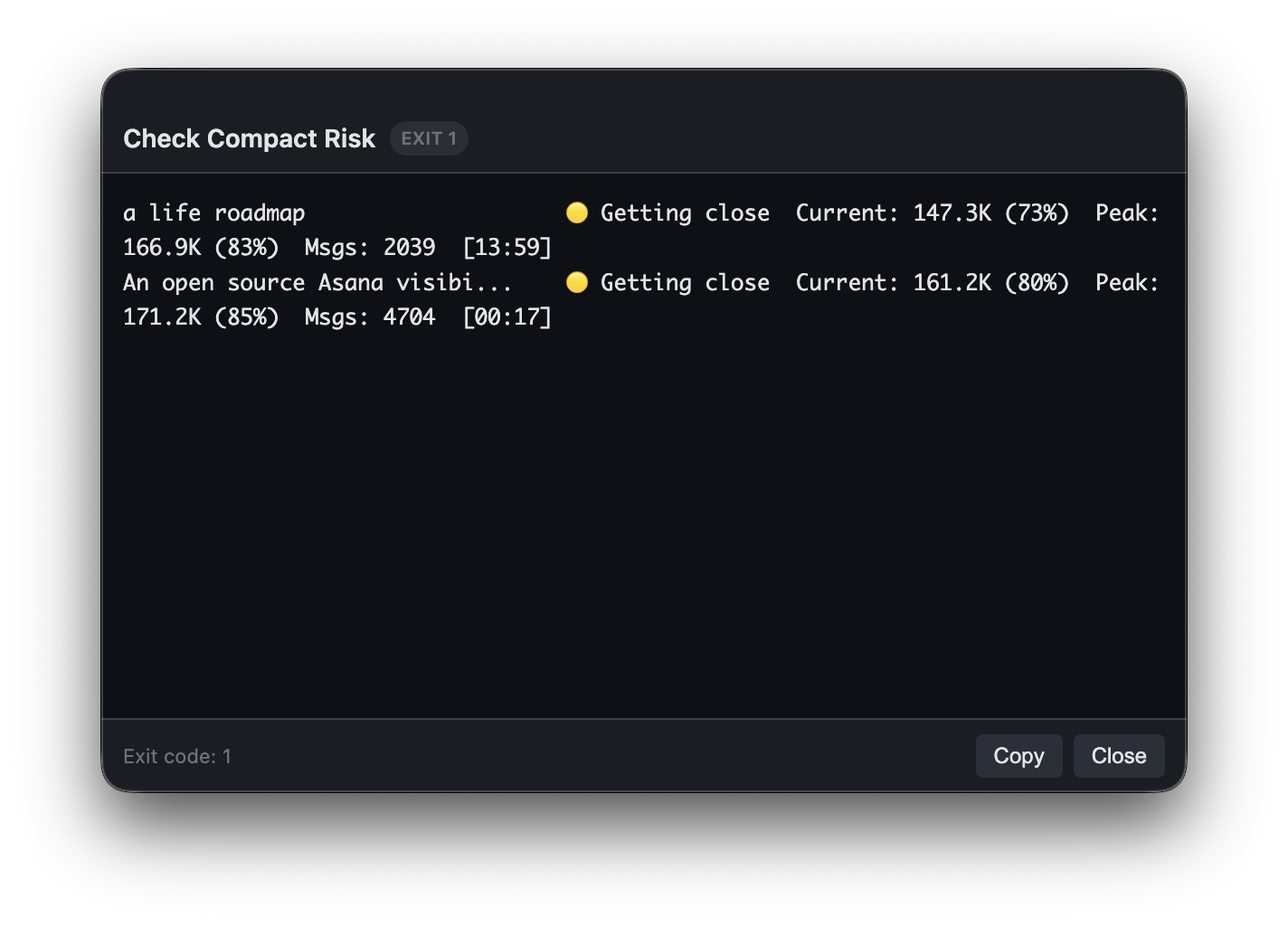
Green means keep working. Yellow means start thinking about compaction. Red means auto-compaction is imminent — compact now or lose control of what’s preserved.
The script exits with code 1 if any sessions are at risk, which is the detail that makes everything else in this post possible. Any automation tool that checks exit codes can act on it.
The repo is public: github.com/avanrossum/claude-context-monitor
How I actually use it
I don’t run this script manually. I run it inside Actions, my macOS menu bar app, as a scheduled action with “show output on error” enabled.
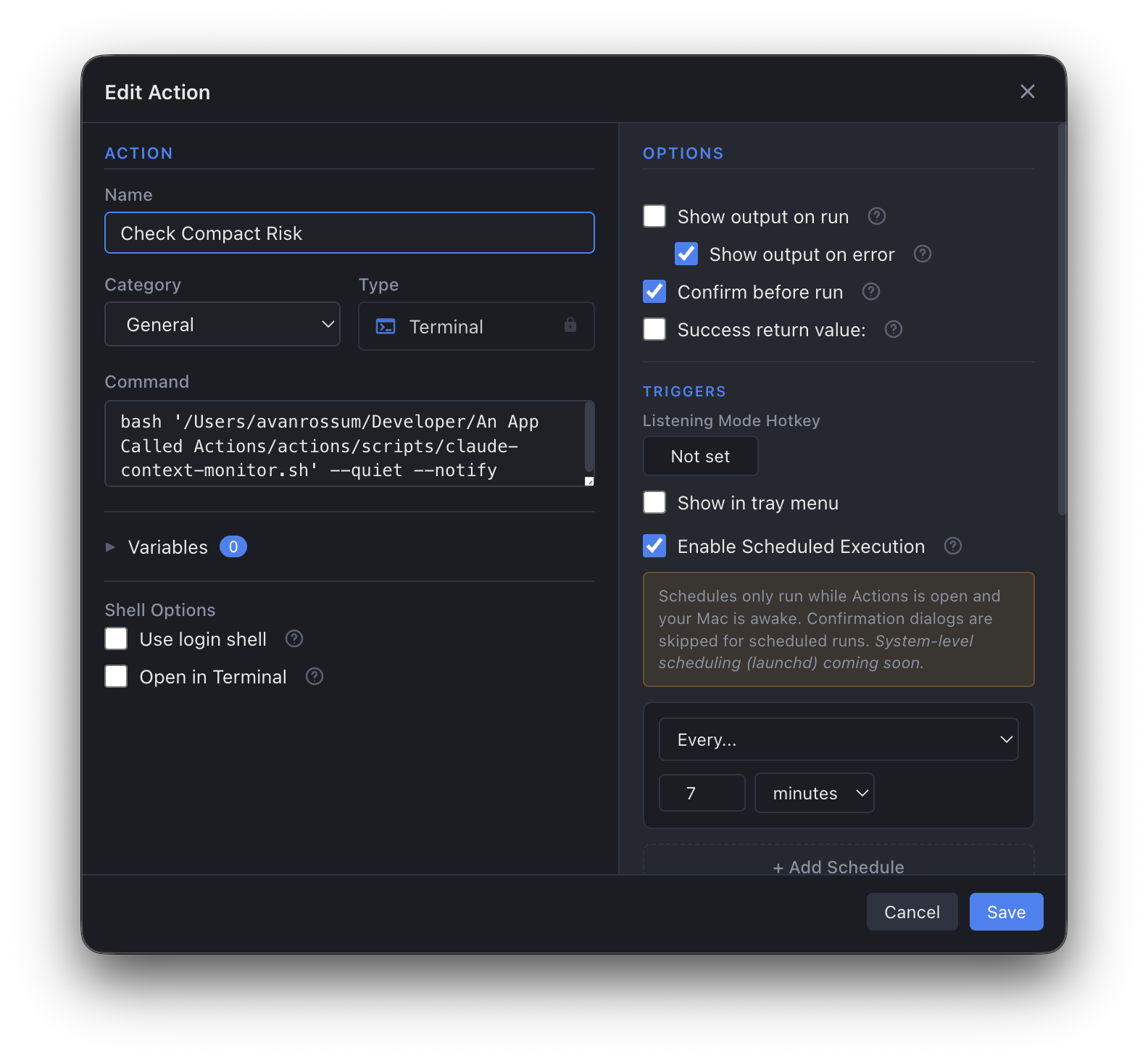
Here’s what that configuration means in practice:
The script runs every 7 minutes with --quiet --notify. Quiet mode means zero output when all sessions are healthy — the action runs, everything’s fine, nothing happens. The --notify flag triggers a macOS notification when a session crosses the warning threshold. And because “show output on error” is checked in Actions, the output window only appears when the script’s exit code is 1 — at least one session needs attention.
The result is a background process that’s completely invisible until something actually matters:
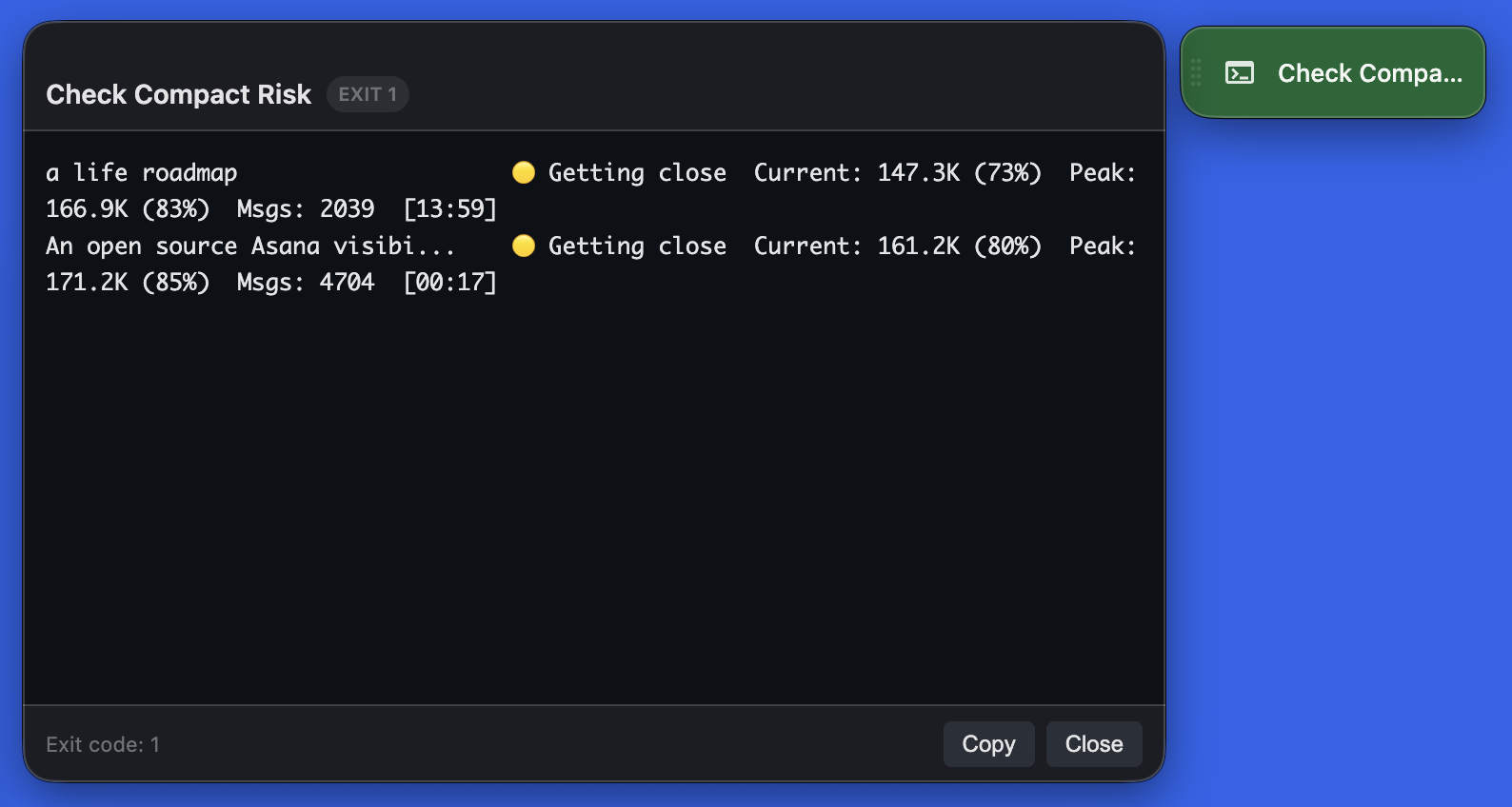
That floating button in the top right is a popout action — one of Actions’ features where any action can “pop out” from the menu bar into a persistent floating button that stays visible even when the app is hidden. One click runs the check manually. When sessions are at risk, the output window shows exactly which ones, their current token usage, their peak usage, and how recently they were active.
Seven minutes between checks. No manual monitoring. No surprises. When the notification appears, I know I have time to wrap up my session state, update my memory files, file the changelog entries, and run /compact deliberately. The controlled transition happens. The important context survives.
Why this matters beyond convenience
This is the part where I connect this to something bigger, and I don’t think it’s a stretch.
My development methodology — Pass@1 — depends on continuity between sessions. CLAUDE.md isn’t just notes. It’s working memory that survives context window resets. It accumulates gotchas, conventions, and debugging insights throughout a session. That accumulated context is what lets the next session pick up exactly where the last one left off instead of re-reading the entire codebase and making the same mistakes.
An uncontrolled compaction interrupts that transfer. The auto-compaction summary captures what happened but not necessarily what I learned or what I wanted the next session to know. The summary is a reasonable compression. It is not the deliberate memory curation that the methodology requires.
This is the difference between “my session got compacted” and “I prepared for compaction.” One is something that happened to me. The other is part of the workflow.
The monitoring script isn’t a nice-to-have. It’s infrastructure for the methodology.
The side effects I didn’t expect
There are benefits to compacting more frequently that go beyond preserving session memory. I didn’t anticipate most of them.
It reduces your token usage. Every message you send includes the full conversation context. A session sitting at 160K tokens is sending 160K tokens with every exchange. Compact that down and the next message is dramatically cheaper. If you have “extended usage” enabled on your Claude Code plan, this directly translates to cost savings — the token meter resets with every compaction, and smaller contexts mean each subsequent interaction burns less of your allocation.
It enforces separation of concerns. When you know compaction is coming, you’re forced to close out your current thread of work cleanly. Commit what you have. File the documentation. Update the memory entries. Move on. This is just good workflow discipline — the kind of structured transition that keeps a session from turning into an unfocused sprawl across six different problems. Each compaction becomes a natural checkpoint, a forced moment of “what am I actually working on right now?”
It changed my behavior just by existing. This might be an ADHD thing, but I suspect it’s universal: having the monitoring script visible — sitting there as a floating button in the corner of my screen — is enough of a cue to make me compact more frequently even when it’s not warning me. The script doesn’t just catch problems. It keeps the concept of context management in my peripheral awareness. That ambient visibility is the difference between “I should probably compact at some point” and actually doing it before the window fills up.
I built this to solve one problem — losing context to auto-compaction. It turned out to solve three.
The pattern
I built a tool because my workflow had a gap. The tool itself was built in a single session because the spec was clear — monitor session files, parse token usage, color-code by risk, exit non-zero on warnings. Pass@1 delivered a working script on the first attempt because the requirements were unambiguous.
Now it runs on a 7-minute loop, protecting every other session from the problem that prompted it. The governance documents don’t just make code reliable. They make the methodology self-sustaining. CLAUDE.md records the gotchas. The monitoring script protects CLAUDE.md. The methodology maintains itself.
That’s the cycle. Build the system. Let the system protect the system. Spend your attention on the work that matters.
If you want the full picture of how these governance patterns hold up across architecture migrations, security audits, and 24 beta releases, see the Actions development case study.
Get the script
curl -O https://raw.githubusercontent.com/avanrossum/claude-context-monitor/main/claude-context-monitor.sh
chmod +x claude-context-monitor.sh
./claude-context-monitor.sh
Options: --warn-at to adjust the warning threshold, --quiet for silent operation when all sessions are healthy, --notify for macOS notifications, --max-age to filter by recency, --watch to monitor continuously.
Full source, scheduling examples (cron and launchd), and setup instructions: github.com/avanrossum/claude-context-monitor
Or get new posts in your inbox
Occasional writing on systems, ADHD, and AI. No cadence pressure.
You're in. I'll send you the next one.