Built for the ADHD workflow
You don't have a productivity problem.
You have a retrieval problem.
You know the command. You've run it a hundred times. But right now, in this moment, you can't remember the exact flags, the right path, or which of your four notes apps you saved it in. So you start scrolling through shell history. Again.
The Real Problem
The up-arrow death spiral.
You open the terminal. You press the up arrow. And up. And up. And up. Fifteen times. Scroll past, overshoot, go back down. That's not it. Up again. You find something that looks right, but it's the version without the flag you needed. So you edit it. Wait, no. That's the staging version. You needed production. Start over.
Three minutes later, you've forgotten why you opened the terminal in the first place.
This isn't a "discipline" problem. This is a working memory problem. And if you have ADHD, your working memory is already running at capacity before you even sit down.
What You've Tried
Every "solution" that made it worse.
Shell history
Thousands of entries. No organization. The command you need is somewhere between yesterday's typos and that thing you ran three weeks ago. Good luck.
Notes apps
You've got a Notion page called "Commands I Always Forget." You also have one in Apple Notes. And maybe one in Obsidian. You can't remember which one has the deploy command. Ironic.
Swiss Army knife launchers
Raycast. Alfred. They do everything — clipboard history, snippets, window management, AI chat, app switching, scripts, integrations, plugins. For an ADHD brain, "everything" means "one more place to get lost."
The ADHD productivity trap:
tools that add cognitive load.
Every feature is a decision. Every option is a fork in the road. Every settings panel is a rabbit hole. For neurotypical brains, more features means more power. For ADHD brains, more features means more friction between you and the thing you sat down to do.
The answer isn't a more powerful tool. It's a tool that does one thing and gets out of the way.
The Fix
Actions does one thing. It does it immediately.
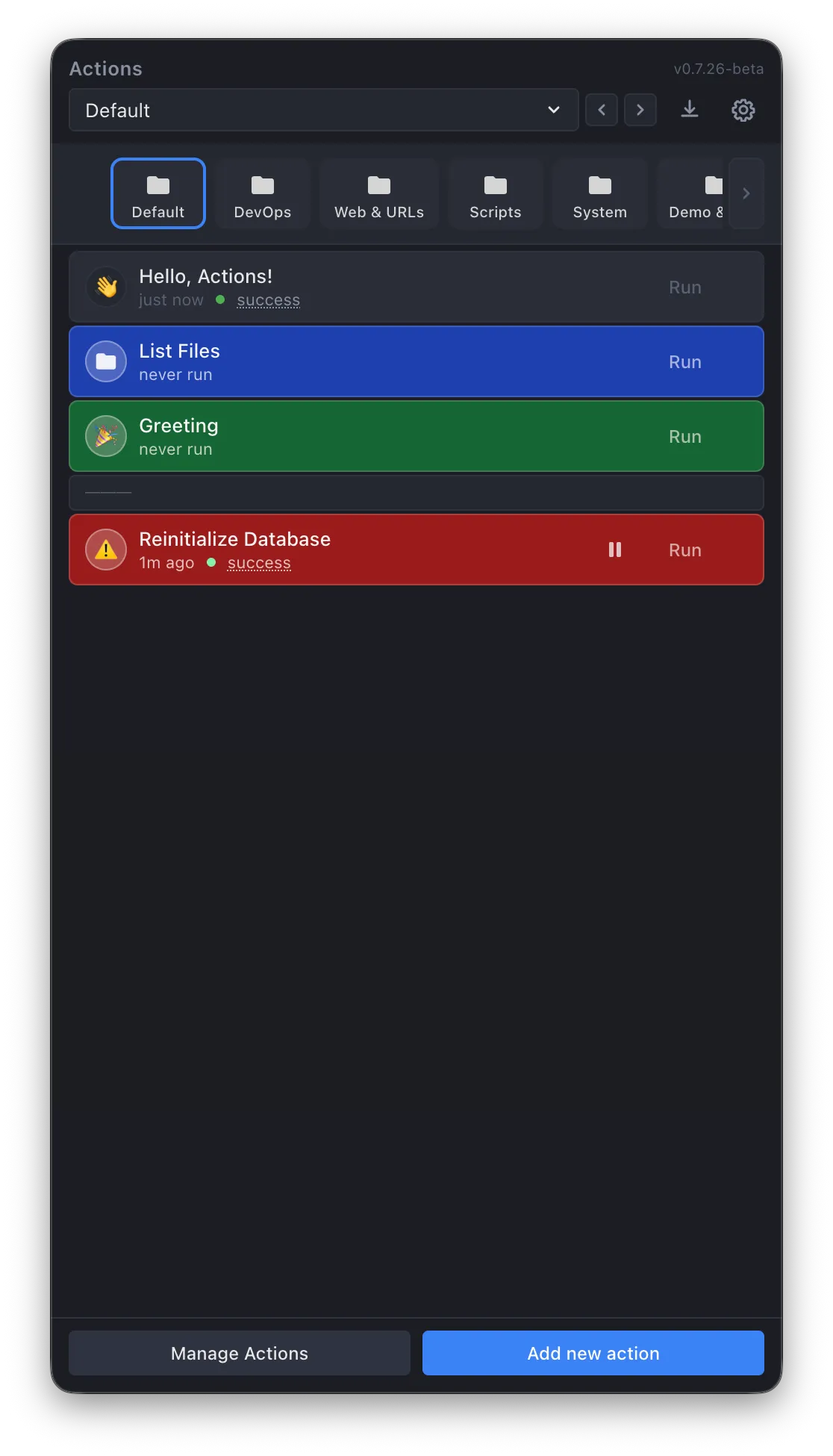
Save your commands once. Give them a name you'll recognize. Put them in a category that makes sense to you. From that point on, running any command is: press your hotkey, pick the command, done. No searching. No remembering. No scrolling.
It lives in your menu bar. No dock icon. No app switcher entry. It doesn't try to be your clipboard manager, your window manager, your AI assistant, or your note-taking app. It runs your commands. That's it.
Why This Works
Designed around how ADHD brains actually operate.
Offload, don't memorize
Working memory is the bottleneck. Actions externalizes command recall completely. You don't need to remember the flags, the paths, or the arguments — you already saved them. Your brain only needs to remember "I have a deploy command." That's it.
Zero-step access
Leader key hotkeys mean you can fire any command from anywhere on your Mac with two keystrokes. No app switching, no window hunting, no "wait, where was that?" The moment you think "I need to run the build," you're already running the build.
Visual organization matches how you think
Color-coded categories with icons. Not a flat list of 200 aliases in a dotfile. You see "Build Apps" in green with a folder icon, and your brain says "deploy stuff goes there." Spatial memory works. Alphabetical lists don't.
Reduced decision surface
Actions doesn't do 47 things. It doesn't have a plugin ecosystem. It doesn't offer you a search bar that queries the internet, your files, your calendar, and your clipboard at once. It shows you your commands. You pick one. Done.
Floating Buttons
If you can see it, you can use it. If you can't, it doesn't exist.
That's how ADHD works. If a tool is behind a menu, behind an app switch, behind a keyboard shortcut you forgot — it's gone. You'll reinvent the process from scratch instead of using the thing that's two clicks away but invisible.
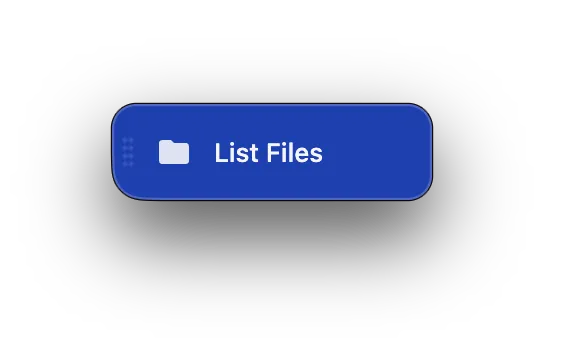
Floating buttons fix this completely. Pop out any action as a persistent button on your desktop. It stays visible above all windows, even when the Actions app is hidden. Your most-used commands are always in your peripheral vision. One click to run. No recall required.
The best external memory system is the one you can literally see.
Variables
Same command, different context — without re-learning it every time.
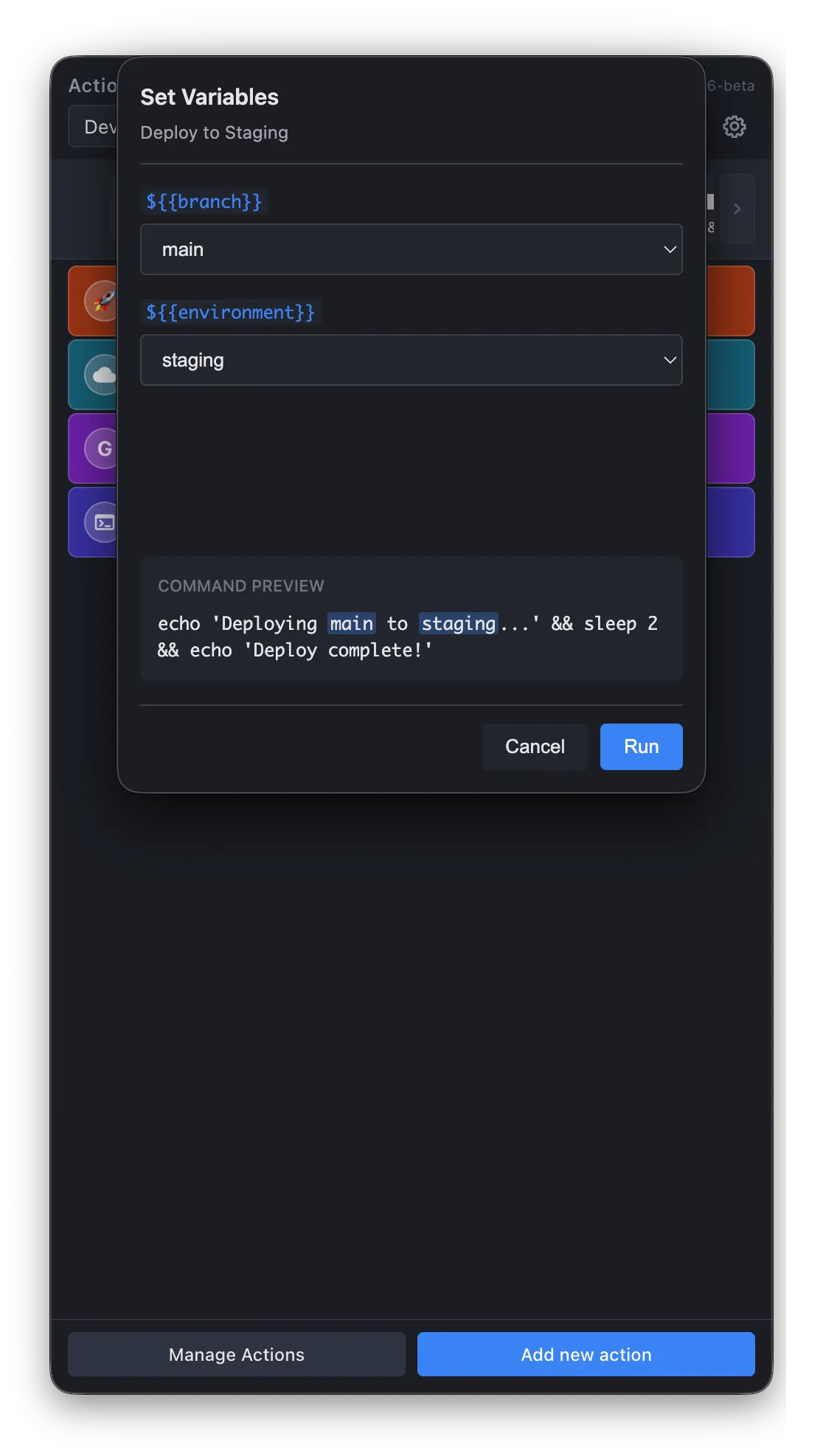
Your deploy command works the same way for staging and production, except for one argument. Your SSH command is the same except for the server name. Variables let you define the command once with blanks that get filled in at runtime — with preset values so you don't even have to type the options.
This is the difference between "I need to figure out the deploy command again" and "I need to press a button and pick 'production'."
I built this because I needed it.
I have ADHD. I work in terminals all day. I was spending actual minutes every day on the up-arrow-scroll-overshoot-scroll-back-not-that-one-up-up-up-up dance. I had a Notion page of commands that I'd forget to check. I tried Alfred and Raycast and spent more time configuring workflows than running them.
So I built a menu bar app that just runs commands. No plugin store. No community marketplace. No AI assistant bolted on. Save the command. Name it. Categorize it. Run it. That's the whole product.
It works because it doesn't try to do anything else.
Honest Comparison
Actions vs. everything else.
Raycast and Alfred are powerful tools. If they work for you, use them. But if you've tried them and found yourself configuring instead of working, this is the alternative.
| Actions | Swiss Army Knives | |
|---|---|---|
| Purpose | Run your saved commands | Everything, all at once |
| Setup time | Add a command, done | Workflows, plugins, configs |
| Cognitive load | See commands, pick one | Search across 10+ domains |
| Plugin ecosystem | None (intentional) | Hundreds of extensions |
| Risk of rabbit holes | Near zero | Extremely high |
| Keyboard shortcut | Leader key + one key | Single global hotkey |
| AI features | No | Yes (another thing to configure) |
| Price | Free / $12 Pro | Free / $8–12/mo subscription |
It Still Does Plenty
Simple doesn't mean limited.
Actions is focused, not stripped down. Everything here serves one goal: get the command running with the least friction possible.
Floating popout buttons
Pin actions as persistent desktop buttons. Always visible, even with the app hidden.
Any command type
Terminal, Bash, Python, Node.js, AppleScript, URLs, Apple Shortcuts.
Runtime variables
Parameterize commands with fill-in-the-blank prompts and saved presets.
Leader key hotkeys
Trigger any action with two keystrokes from anywhere on your Mac.
Scheduled runs
Interval, daily, weekly, monthly — the app handles the cron job.
Real-time output
Floating windows stream results with full ANSI color support.
Stop fighting your shell history.
Save your commands once. Run them with two keystrokes. Get back to the thing you were actually trying to do.
Free tier available · Pro from $12 (one-time, not a subscription)